Connecting Claude to Gmail: A Guide
You can now connect Claude to your Gmail account, bringing numerous handy features. With this connection, Claude can search emails, summarize long correspondences, and even generate drafts for new emails. The installation of the Gmail connector is straightforward and can be completed in a few minutes, even with a free Claude account.
To connect Claude to Gmail, you need a Claude account and a Google account with Gmail. The Gmail connector is available for all subscriptions, including free versions. A standard Gmail address is sufficient; a business account is not required. It’s important to note that Claude only has access to your inbox if you grant permission, and you can disconnect the integration at any time.
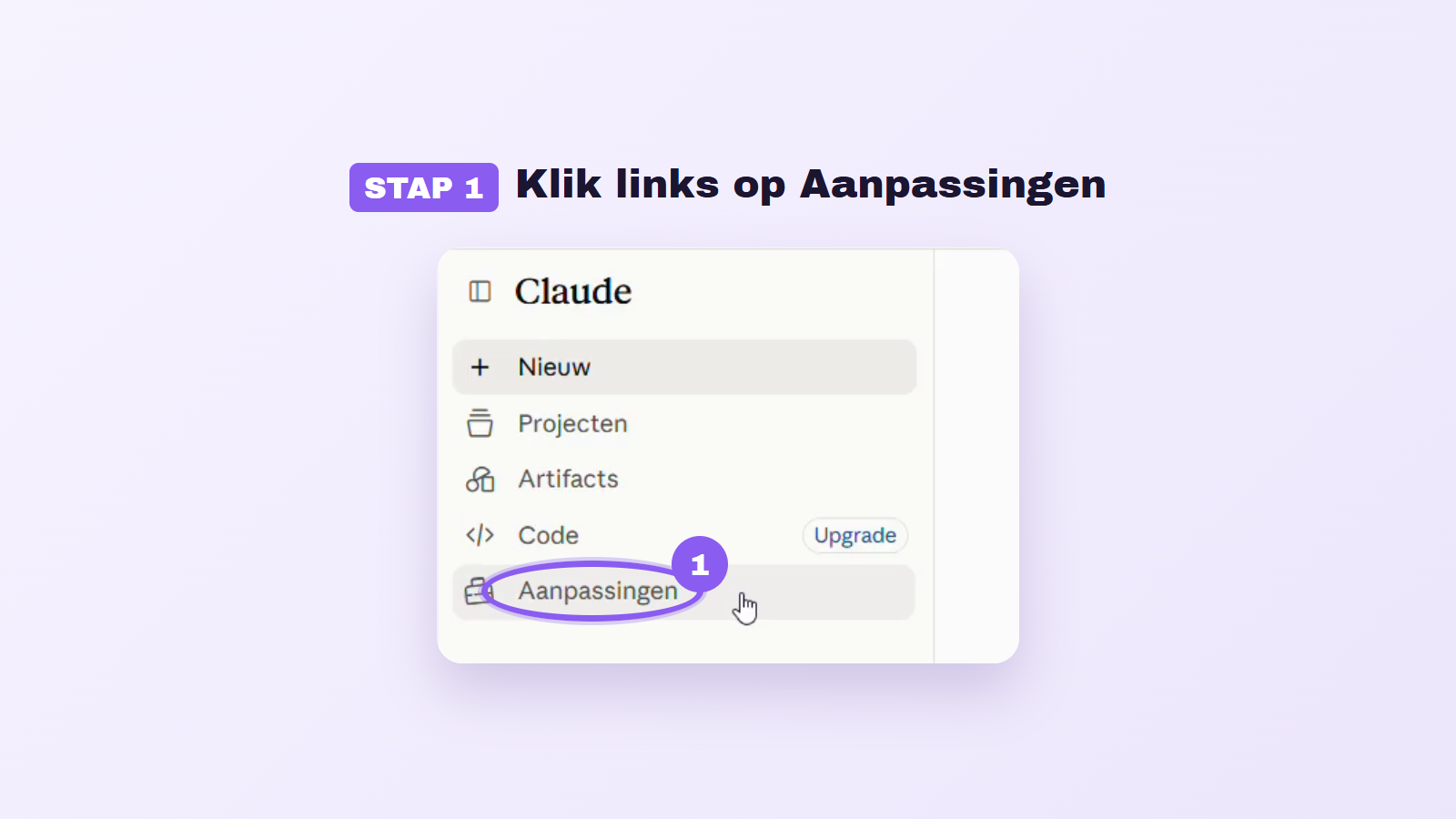
The process to connect Claude to Gmail consists of five steps: start by opening the Claude app or website and go to the Customizations tab. Then search for the Gmail connector using the search field. After that, click the 'Connect' button to initiate the linking. Choose your Google account and grant the necessary permissions. Once you see the message "Connected to Gmail," the link has been successfully established.
After the connection, Claude can search and summarize your emails. This is particularly useful for catching up after a leave or finding old emails. Additionally, Claude can write drafts, generate responses, and adjust labels. The Gmail connector offers six reading tools and 24 writing tools, allowing you to easily formulate your requests in plain language. It’s also important to know that Claude cannot send emails without your approval, as you always need to confirm before any action is taken.
If you ever decide to end the connection, you can simply click the "Disconnect" button on the Gmail connector page, which will revoke Claude's access to your emails.
Read the full article from AI Insider.
Gerelateerde artikelen

Discount on TechCrunch Disrupt 2026 in San Francisco
During TechCrunch Disrupt 2026, which takes place from October 14 to 25 at Moscone West, San Francisco, there is an attractive opportunity to get a 50% discount on the entrance fee for the last two da...

Tech Festival
14 October 2026
Zenzap raises 44 million dollars for AI chat app
Zenzap, an innovative chat application, has recently raised 44 million dollars to further develop its platform. This application primarily targets the business market and hopes to provide an alternati...
Tech Festival
14 October 2026
Floqer’s AI-powered customer data platform
Floqer introduces an autonomous customer knowledge platform designed for B2B sales and marketing teams. This innovative project utilizes an AI-driven database that continuously collects, organizes, an...
Tech Festival
14 October 2026