
Claude in Chrome: installation and usage
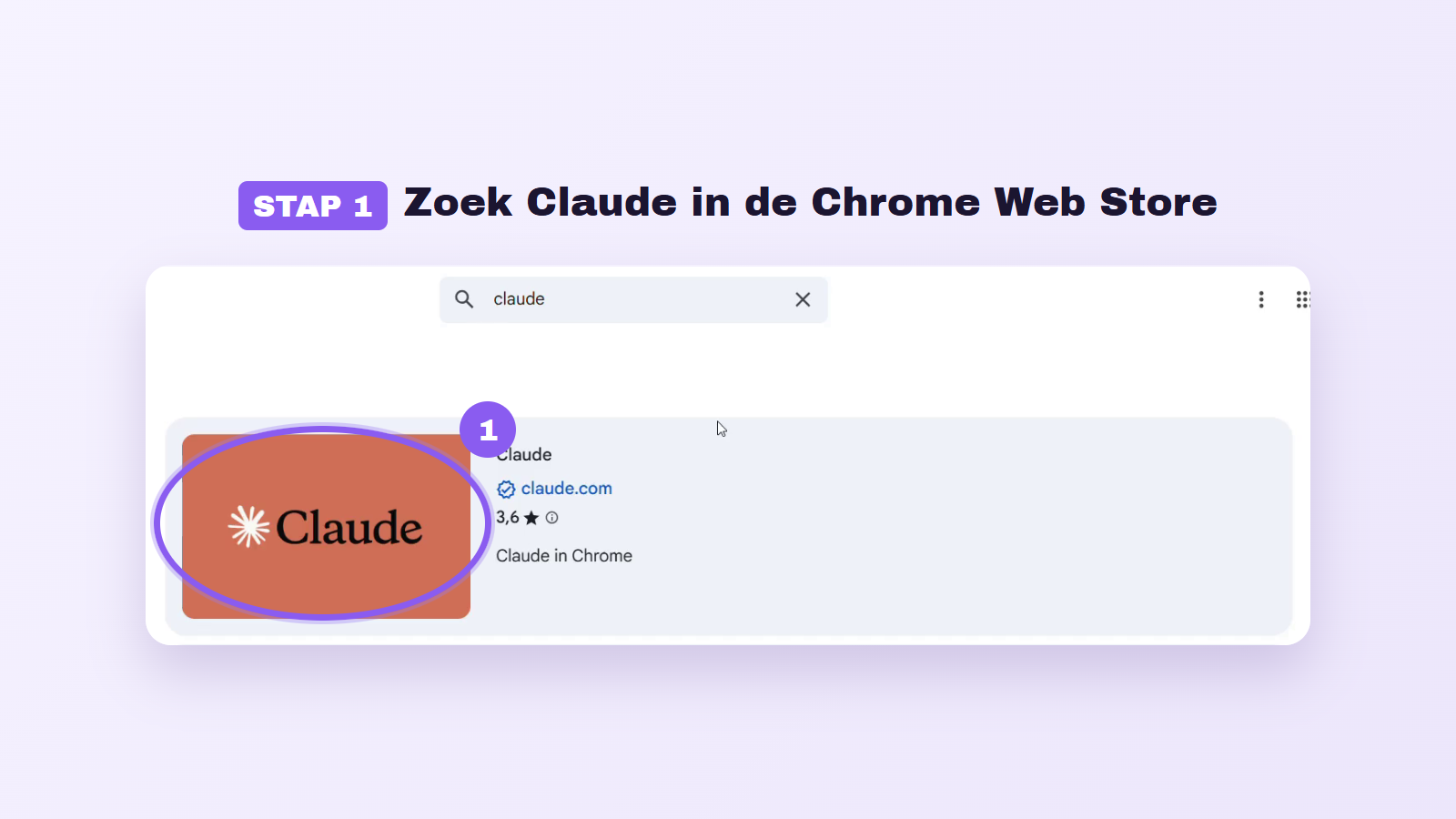
The Claude in Chrome extension allows you to use the AI assistant Claude directly within your browser. After installation, the extension automatically reads the page you're on and can autonomously click, type, and fill out forms. The installation process via the Chrome Web Store takes just a few minutes.
This extension is officially developed by Anthropic, the company behind Claude. Once activated, Claude appears in a sidebar where it can analyze the content of the active page and perform actions based on it. To use the extension, you need a Google Chrome browser, a computer, and a paid Claude account, as the free version does not provide access. Note that the extension does not work on other browsers like Edge or Brave.
Installing Claude in Chrome involves five key steps. First, search for the extension in the Chrome Web Store. Next, add the extension to Chrome and log in with your Claude account. Then you can pin the icon in the toolbar for easy access. Finally, open the sidebar and give a command to Claude.
The functionalities of Claude in Chrome are versatile. From summarizing articles to filling out forms, Claude assists you in various tasks. The extension can automate actions such as clicking through websites, gathering data from dashboards, and going through your agenda. You can sync tasks into workflows for future use, as long as Chrome is active. However, safety remains a priority. Anthropic warns of risks such as prompt injection, although they have implemented security measures. Do not use Claude in Chrome for sensitive actions such as online banking.
Want to know more about the installation and capabilities? Then visit the great article by AI Insider for a comprehensive explanation.
Gerelateerde artikelen

TechCrunch Disrupt 2026: Highlights of Startup Battlefield 200
During TechCrunch Disrupt 2026, approximately 200 startups presented themselves as part of Startup Battlefield 200. This event provided a platform for promising technology companies to showcase their...

Tech Festival
22 October 2026
Uber implements ChatGPT for 30,000 employees
Uber has announced that it is expanding the deployment of ChatGPT Work to all of its 30,000 employees. This marks a significant step for the company, which previously conducted a smaller pilot for the...
Tech Festival
22 October 2026
Tesla Prepares Cybercab Expansion
Tesla intends to launch its innovative two-seat robotaxis, also known as Cybercabs, this year in various cities across the United States. This ambitious project aligns with the broader trend of electr...
Tech Festival
22 October 2026